Overview
Interactive Brokers (IBKR) is one of the most popular brokers for European investors, offering access to a wide range of global markets at competitive prices. If you want to track your IBKR portfolio on EasyPortfolio, you'll need to export your trade history as a CSV file.
In this guide, we'll walk you through the entire process step by step using IBKR's Flex Queries feature — a powerful tool that lets you create custom reports and export your trading data.
What You'll Need
- An active Interactive Brokers account
- Access to the IBKR Client Portal
Step 1 — Log In to the Client Portal
Go to the Interactive Brokers Client Portal and sign in with your credentials. If you have two-factor authentication enabled, complete the verification step.
Step 2 — Navigate to Flex Queries
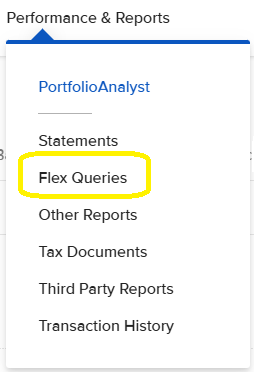
- Click on the "Performance & Reports" menu in the top navigation bar.
Select "Flex Queries" from the dropdown menu.
Step 3 — Create a New Activity Flex Query
On the Flex Queries page, you'll see two sections: Activity Flex Queries and Trade Confirmation Flex Queries.
- In the "Activity Flex Queries" section, click the "+" (plus) button to create a new query.
- Give the query a name — for example, "EasyPortfolio Export" or simply "Trades Export".
Step 4 — Select the Trades Section
This is the most important step. In the "Sections" area of the query configuration:
Click on "Trades" to open the field selection modal.

- Check "Select All" at the top to include all available trade fields.
- Scroll down and click "Save" to confirm the selection at the bottom of the page.
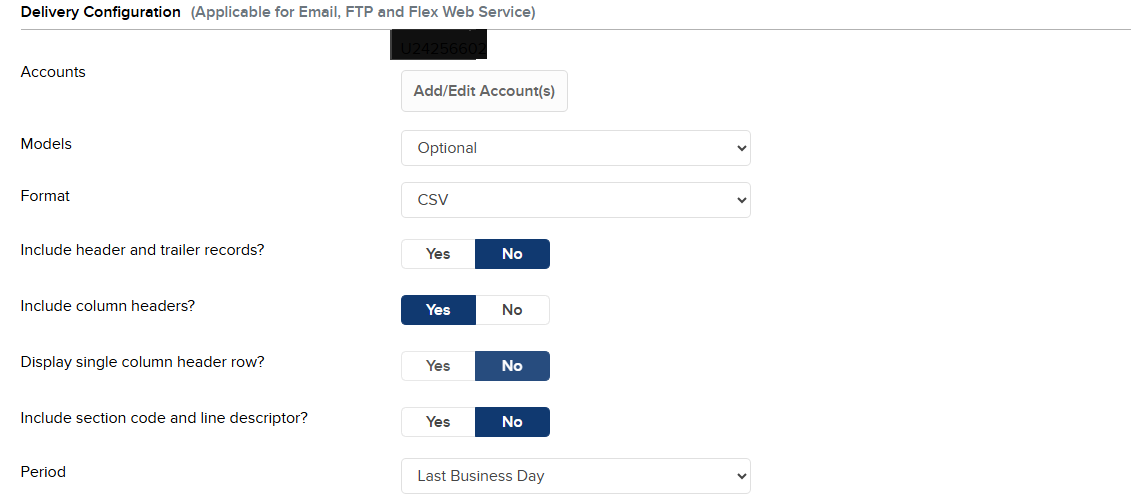
Step 5 — Set the Delivery Configuration
Make sure the following options are configured.
| Setting | Required Value |
|---|---|
| Models | Optional |
| Format | CSV |
| Include header and trailer records | No |
| include column headers | Yes |
| Display single column header row | No |
| Include ssection code and line descriptor | No |
| Period | Last Business Day |
Step 6 — Configure the Date and Time Format
Scroll down to the "General Configuration" section and make sure the following settings are correct:
| Setting | Required Value |
|---|---|
| Date Format | yyyyMMdd |
| Time Format | HHmmss |
| Date/Time Separator | ; (semicolon) |
| Profit and Loss | Default |
| Include Canceled Trades | No |
| Include Currency Rates | No |
| Include Audit Trail Fields | No |
| Display Account Alias in Place of Account ID | No |
| Breakout by Day | No |
Step 7 — Save the Flex Query
- Click "Continue" at the bottom of the page.
- Review the summary and click "Create".
- Click "OK" to confirm.
Your Flex Query is now saved and ready to use. You only need to set this up once — you can reuse it every time you want to export new trades.
Step 8 — Run the Query and Download
- Back on the Flex Queries page, find the query you just created.
- Click the right arrow (▶) button next to it to run the export.
- Select your desired date range in the Period field:
- Last 365 calendar days for recent trades
- Custom date range for a specific period
- Click "Run" to generate and download the CSV file.
Note: Interactive Brokers limits exports to one year at a time. If your portfolio has trades older than a year, you'll need to run the export multiple times with different date ranges.
Step 10 — Import into EasyPortfolio
Now that you have the CSV file:
- Log in to EasyPortfolio and go to your portfolio dashboard.
- Click the "Import CSV" button in the top navigation bar.
- Select the CSV file you downloaded from Interactive Brokers.
- EasyPortfolio will automatically detect that it's an IBKR file and begin importing your trades.
- You'll see real-time progress as each trade is processed.
What Gets Imported?
From your Interactive Brokers export, EasyPortfolio extracts the following information for each trade:
- Symbol — The stock ticker (e.g., NVDA, AAPL)
- ISIN — The international security identifier
- Trade Date & Time — When the trade was executed
- Quantity — Number of shares bought or sold (fractional shares supported)
- Price — Execution price per share
- Currency — Trade currency (USD, EUR, GBP, etc.)
- Exchange Rate — FX rate to your base currency
- Commissions & Taxes — All fees associated with the trade
- Buy/Sell — Whether it was a purchase or a sale
Troubleshooting
The file wasn't detected as Interactive Brokers
Make sure you exported as CSV format (not XML). EasyPortfolio identifies IBKR files by checking for specific column headers like ClientAccountID and AssetClass.
Some trades are missing
Remember that IBKR limits exports to one year at a time. If you need older trades, run the export again with a different date range.
Only stocks/ETFs were imported
This is expected. EasyPortfolio currently imports only equity trades (stocks and ETFs). Forex conversions, options, and futures are intentionally filtered out.
If you have any questions or run into issues, don't hesitate to contact our support team.
Comments 0
No comments yet. Be the first to comment!
Leave a comment