Step 1: Log In to Degiro WebTrader
Open your browser and navigate to Degiro WebTrader. Sign in with your credentials. While Degiro also offers a mobile app, the export functionality is only available through the web platform.
Step 2: Navigate to the Account Statement
Once logged in, look at the left-hand sidebar. Hover over the Inbox icon (the envelope symbol) and select Account Statement from the dropdown menu.
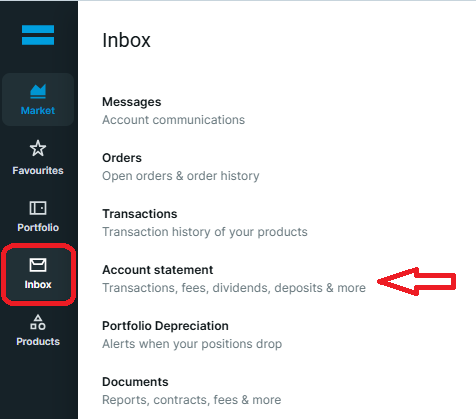
The Account Statement is where Degiro records every financial event in your account — this includes dividend payments, withholding taxes, currency conversions, deposits, withdrawals, and trade executions. This is the export we need, as it contains the complete dividend data along with the exchange rates used for currency conversions.
Step 3: Set the Date Range
By default, Degiro may only show a limited date range. To capture your full dividend history:
- Click on the start date field and set it to the date you opened your Degiro account.
- Set the end date to today's date.
- Ensure the Currency filter is set to All so that both EUR and USD dividends are included.

The broader the date range, the more complete your dividend history will be. There is no drawback to selecting a wider range than necessary — EasyPortfolio will only process the dividend-related entries.
Step 4: Export as CSV
With the correct date range selected, look for the Export button on the right side of the Account Statement page. Click it, then select CSV as the file format.
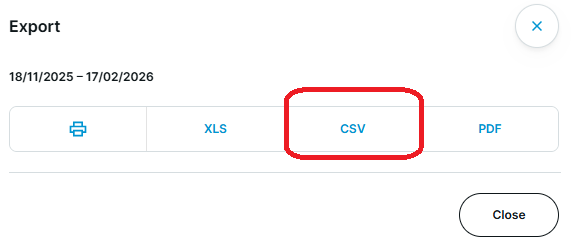
Save the file to a location you can easily find, such as your Downloads folder or Desktop. The file will typically be named something like Account_Statement.csv.
Important: Do not open and re-save the CSV file in Excel before uploading. Excel can modify the date formatting and decimal separators, which may cause import errors. Upload the file exactly as downloaded from Degiro.
Step 5: Upload to EasyPortfolio
- Log in to your EasyPortfolio account.
- Navigate to Dividends from the main menu.
- Click on the Import CSV option.
- Select the CSV file you just downloaded from Degiro.
- EasyPortfolio will automatically detect that it is a Degiro export and process it accordingly.
What About Corrections and Reversals?
Degiro occasionally reverses and re-issues dividend entries — for example, when a withholding tax rate is corrected after the initial payment. EasyPortfolio handles this automatically. If a dividend is cancelled and re-issued within the same export, the system sums all entries for the same security and payment date. If they cancel out to zero, the entry is skipped entirely. If a corrected amount remains, only the final net result is imported.
How Often Should I Export?
We recommend exporting and uploading your Degiro Account Statement after each dividend payment cycle — typically once per quarter. However, if you want to have a closer look, uploading the dividends each month can also provide some interesting insights.
Supported Securities
The Degiro dividend import works with all security types that pay dividends, including:
- Individual stocks (e.g., Coca-Cola, Microsoft, Starbucks)
- Distributing ETFs (e.g., Vanguard S&P 500 UCITS ETF, iShares Core Euro Stoxx 50)
- REITs and other dividend-paying instruments
Both EUR-denominated and USD-denominated dividends are fully supported, with automatic currency conversion using the exact exchange rate recorded by Degiro.
Troubleshooting
| Issue | Solution |
|---|---|
| No dividends appear after upload | Ensure your date range covers the period when dividends were paid. |
| Incorrect exchange rate | Verify you exported with the Currency filter set to "All". |
| File upload error | Make sure you did not open and modify the CSV in Excel before uploading. |
| Duplicate dividends | This should not occur — EasyPortfolio skips records that already exist. If it does, contact support. |
Ready to start tracking your Degiro dividends? Log in to EasyPortfolio and upload your first export today.

Comments 0
No comments yet. Be the first to comment!
Leave a comment