Step 1: Export Your Trades from Revolut
Open the Revolut app on your phone or navigate to app.revolut.com in your desktop browser. Sign in with your credentials.
If you are in the phone, tap the Invest tab at the bottom of the screen. If you are in the web, then you need to click in the apps button located in the upper-right corner of the screen.
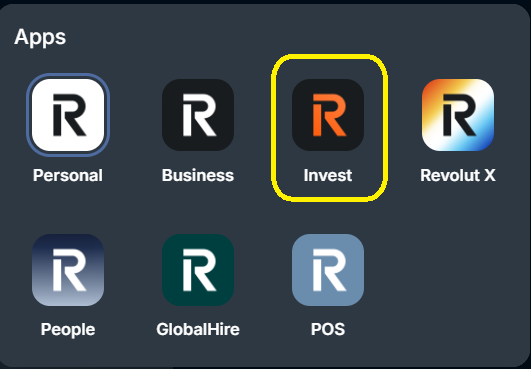
Tap the three dots (···) or the settings gear icon in the top-right corner.
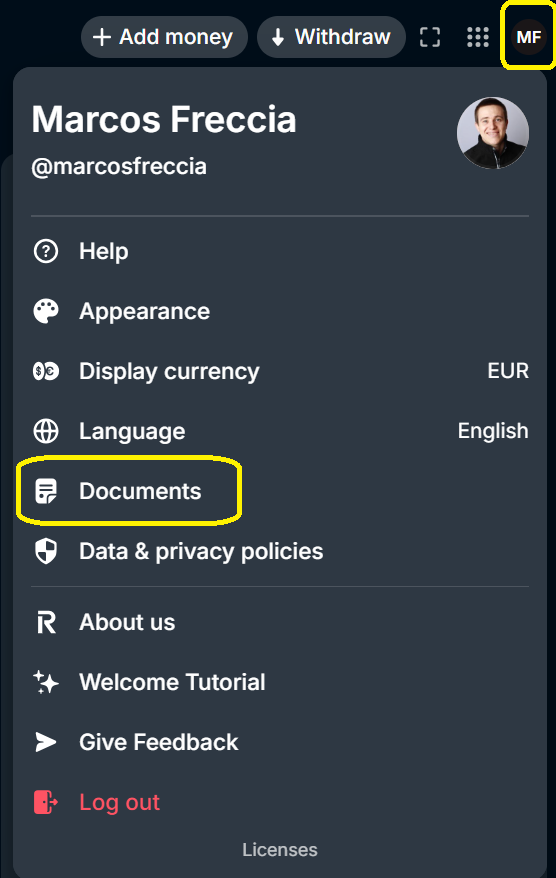
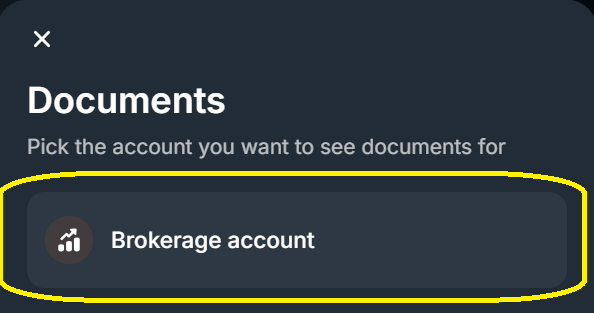
Select Brokerage Account.
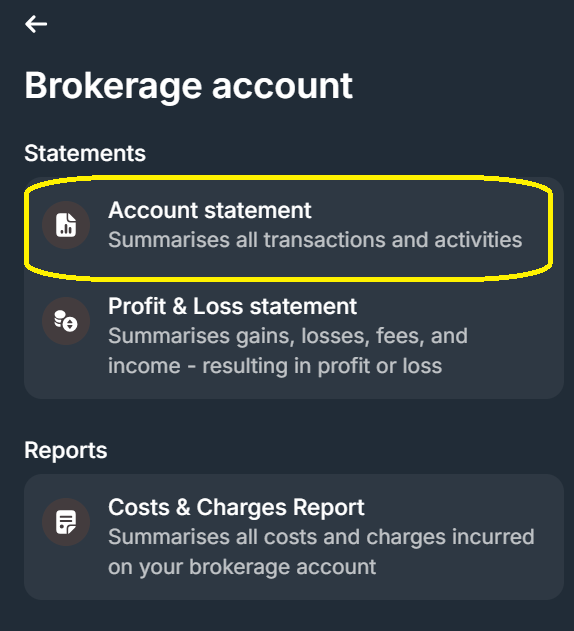
Select Account statement.
Choose Excel, the date range you want to export — we recommend selecting the widest range available.
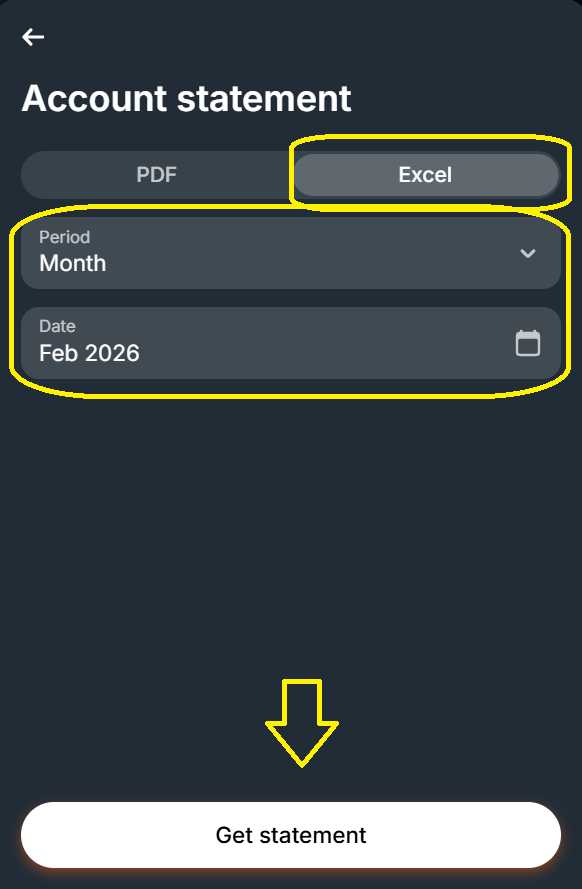
- Select Get statement.
- A widget will show up with the Download button.
Step 2: Edit the CSV and populate with ISIN
Why You Need to Add the ISIN Column
Revolut's CSV export does not include the ISIN (International Securities Identification Number) for each stock or ETF. This is a limitation of Revolut's export format compared to other brokers like Trading 212, Degiro, or Interactive Brokers, which include ISINs automatically.
The ISIN is essential for EasyPortfolio to correctly identify your securities, fetch daily prices, calculate portfolio performance, and track your holdings accurately. Without it, the system cannot distinguish between securities that may share similar ticker symbols across different exchanges.
Don't worry — adding the ISIN column is quick and straightforward.
Find the ISIN for Each Security
You can find the ISIN for each stock or ETF directly in the Revolut app:
- Go to the Invest tab.
- Tap on the stock or ETF you want to find the ISIN for.
- Scroll down to your transaction history and tap on any transaction.
- In the Transaction Details screen, you'll find the ISIN listed alongside other details.
- You can also add the
Alternatively, you can search for the ISIN online by searching for the company name followed by "ISIN" (e.g., "ASML Holding ISIN").
Step 3: Add the ISIN Column to Your CSV
Open your downloaded CSV file in a spreadsheet application (Excel, Google Sheets). The file will look something like this:
| Date | Ticker | Type | Quantity | Price per share | Total Amount | Currency | FX Rate |
|---|---|---|---|---|---|---|---|
| 2026-02-17T10:12:51.768Z | ASME | BUY - MARKET | 0.00848752 | EUR 1178.20 | EUR 10 | EUR | 1.0000 |
| 2026-02-17T10:13:41.707Z | SND | BUY - MARKET | 0.04033205 | EUR 246.95 | EUR 10 | EUR | 1.0000 |
Now, follow these steps:
- Insert a new column after the "FX Rate" column. Name it ISIN.
- Fill in the ISIN for each trade row using the values you found in Step 2.
- You can leave the ISIN cell empty for non-trade rows (like CASH TOP-UP or DIVIDEND) — these will be skipped automatically.
Your updated CSV should look like this:
| Date | Ticker | Type | Quantity | Price per share | Total Amount | Currency | FX Rate | ISIN |
|---|---|---|---|---|---|---|---|---|
| 2026-02-17T10:12:51.768Z | ASME | BUY - MARKET | 0.00848752 | EUR 1178.20 | EUR 10 | EUR | 1.0000 | NL0010273215 |
| 2026-02-17T10:13:41.707Z | SND | BUY - MARKET | 0.04033205 | EUR 246.95 | EUR 10 | EUR | 1.0000 | LU1839092006 |
Tip: If you have multiple trades for the same security, you only need to look up the ISIN once — just copy and paste it to all rows with the same ticker.
Step 4: Save and Upload to EasyPortfolio
- Save your modified CSV file (make sure it's saved as CSV format, not Excel .xlsx).
- Log in to your EasyPortfolio account.
- Navigate to your Portfolio Dashboard.
- Click the Import CSV button in the top navigation bar.
- Select the modified CSV file.
- EasyPortfolio will automatically detect that it is a Revolut export and begin processing.
You'll see a real-time progress indicator as each trade is imported. Once complete, your portfolio will be updated with all the imported holdings.
What Gets Imported
For each trade in your Revolut CSV, EasyPortfolio will extract and store:
- ISIN — the unique identifier for the security (from the column you added)
- Ticker symbol — the stock or ETF identifier
- Trade date and time — exact timestamp of the transaction
- Quantity — number of shares (including fractional shares)
- Price per share — the execution price
- Total amount — the total value of the trade
- Currency — EUR, USD, or other supported currencies
- Exchange rate — the FX rate applied by Revolut
- Operation type — Buy or Sell
Important Notes
Fractional Shares Supported
Revolut allows purchasing fractional shares, and EasyPortfolio fully supports this. Whether you bought 0.008 shares of an expensive stock or 100 whole shares, all quantities are imported accurately.
Currency-Prefixed Values
Revolut formats monetary values with a currency prefix (e.g., "EUR 1178.20" or "USD 42.50"). EasyPortfolio automatically strips these prefixes and extracts the numeric values correctly.
Duplicate Detection
EasyPortfolio's duplicate detection ensures that re-uploading a file with previously imported trades will not create duplicate records. Each trade is uniquely identified by its ISIN, ticker, timestamp, and portfolio, so you can safely re-import without worry.
Troubleshooting
Error: "Missing ISIN column"
If you see this error, it means you uploaded the Revolut CSV without adding the ISIN column. Go back to Step 3 above and add the column before re-uploading.
File Not Detected as Revolut
Make sure you are uploading the CSV file with the ISIN column added. The file must contain the columns: Date, Ticker, ISIN, Type, Quantity, Price per share, Total Amount, Currency. Do not rename any of the original columns.
Missing Trades
Check that your export date range covers the period of the trades you expect to see. Also note that only Buy and Sell transactions are imported — cash movements, dividends, and other non-trade activities are intentionally skipped. Rows without an ISIN value are also skipped.
Ready to start tracking your Revolut investments? Log in to EasyPortfolio and upload your first export today.

Comments 0
No comments yet. Be the first to comment!
Leave a comment