Step 1: Log In to Trading 212
Open the Trading 212 app on your mobile device or navigate to the web platform in your browser. Sign in with your credentials.
The export functionality is available on both the mobile app and the web platform, though the steps below reference the web interface. The mobile process is nearly identical.
Step 2: Navigate to Transaction History
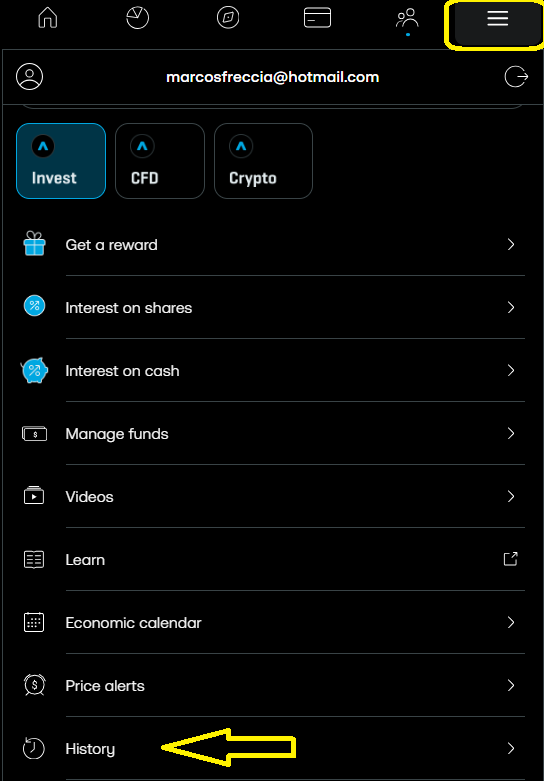
Once logged in, click on the menu icon (three horizontal lines) in the top-right corner of the screen. From the menu, select History.
Step 3: Set the Included Data and Date Range
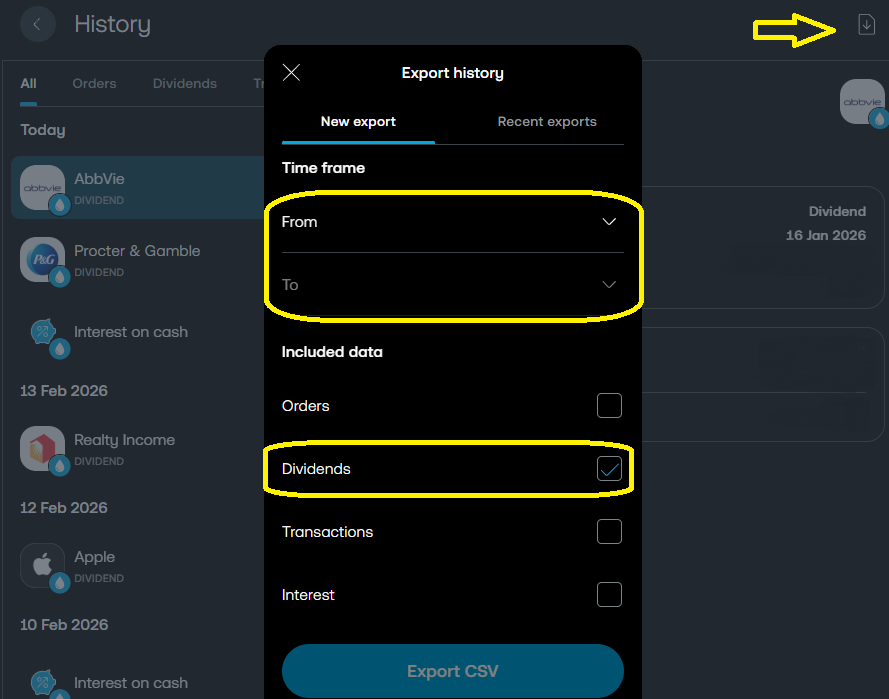
At the top of the History page, you will see a date range selector. To capture your complete dividend history:
- Only leave Dividends selected in the Included data section
- Set the From to the date you opened your Trading 212 account, or use a date far enough back to cover all activity (e.g., 01/01/2020).
- Set the To to today's date.
Step 4: Export as CSV
With the correct date range selected, look for the Export icon — typically a download arrow or a button labelled "Export" — near the top-right of the History page.
Click it to download the transaction history as a CSV file. The file will be saved to your default downloads folder, usually named something like Trading 212 History.csv.
Tip: Do not open and re-save the file in Excel or Google Sheets before uploading. Spreadsheet applications can alter date formats, decimal separators, or encoding, which may cause import errors. Upload the file exactly as downloaded from Trading 212.
Step 5: Upload to EasyPortfolio
- Log in to your EasyPortfolio account.
- Navigate to Dividends from the main menu.
- Click the Import CSV button.
- Select the CSV file you just downloaded from Trading 212.
- Click Upload — EasyPortfolio will automatically detect that it is a Trading 212 export and process it.
Understanding the CSV Columns
Duplicate Detection
EasyPortfolio automatically detects duplicate dividends. If you upload the same CSV file twice, or upload overlapping date ranges, no duplicate records will be created. You can safely re-upload your full history at any time without worrying about double-counting.
How Often Should I Export?
We recommend exporting after each dividend payment cycle — typically once per quarter for most portfolios. Alternatively, you can do a single export at the end of the year to import everything in one batch. EasyPortfolio's duplicate detection ensures consistency regardless of how often you import.
Supported Dividend Types
The Trading 212 import supports all dividend types recorded by the platform, including:
- Ordinary dividends — regular quarterly or annual distributions
- Special dividends — one-off extraordinary payments
- ETF distributions — income from distributing ETFs
- REIT dividends — distributions from real estate investment trusts
Both EUR-denominated and USD-denominated dividends are fully supported, with automatic currency conversion using the exchange rate recorded by Trading 212.
Troubleshooting
| Issue | Solution |
|---|---|
| No dividends appear after upload | Ensure your date range includes the period when dividends were paid. Also verify the CSV contains rows with "Dividend" in the Action column. |
| Exchange rate shows "Not available" | This is normal for dividends paid in your account's base currency. EasyPortfolio will calculate the rate from the other fields. |
| File upload error | Make sure you did not open and re-save the CSV in a spreadsheet application before uploading. |
| Withholding tax is missing | Some dividends from certain countries have 0% withholding tax. This is expected and will be recorded as €0.00. |
Ready to start tracking your Trading 212 dividends? Log in to EasyPortfolio and upload your first export today.

Comments 0
No comments yet. Be the first to comment!
Leave a comment